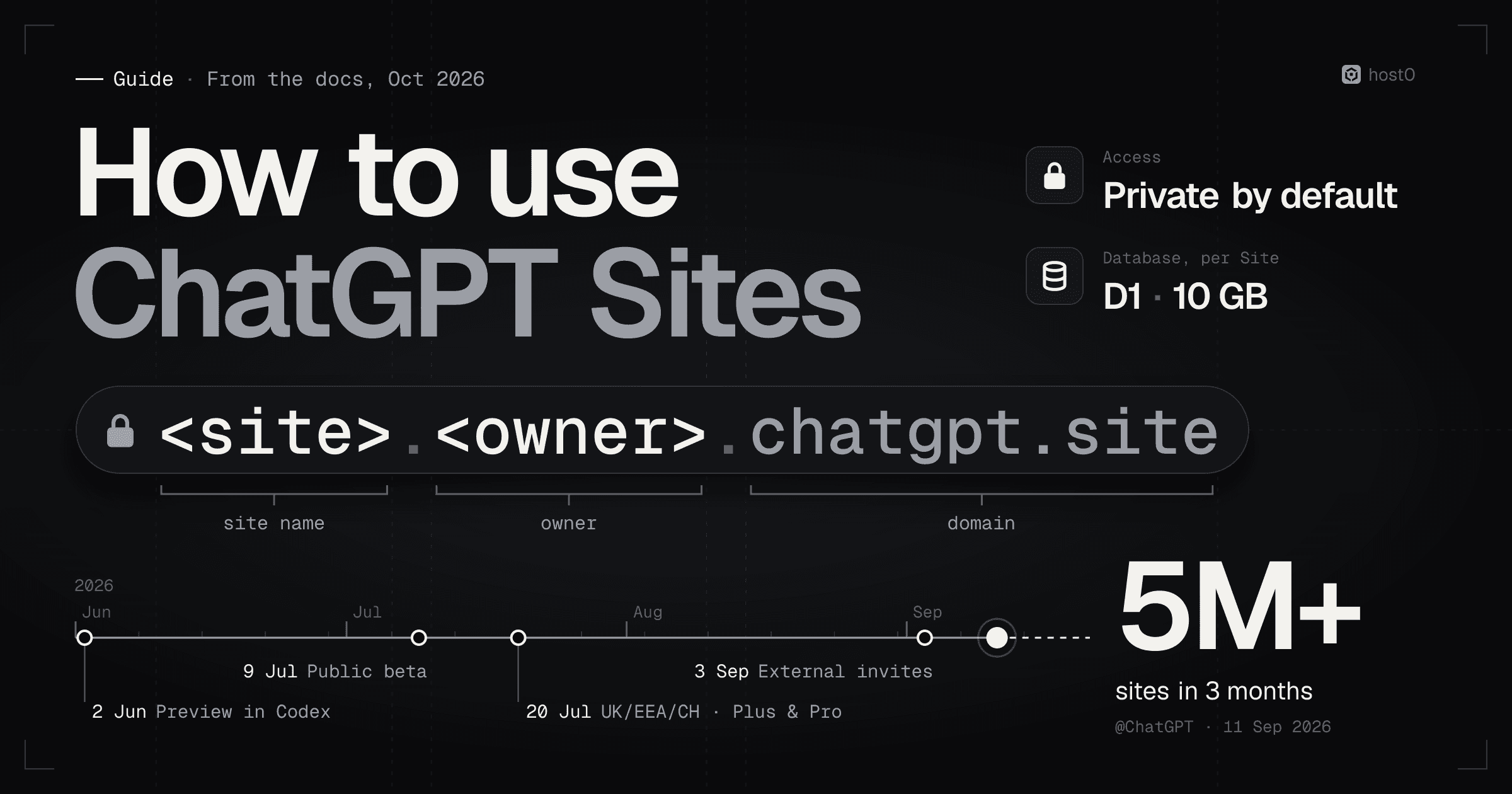
To use ChatGPT Sites, open Work in ChatGPT on the web (or Work or Codex in the ChatGPT desktop app), describe the site you want with the word "website" or a mention of @Sites, review the private preview, then choose who has access and select Publish. ChatGPT builds the site, hosts it at an address like <site>.<owner>.chatgpt.site, and keeps it private to you and your workspace admins until you open it up. You need a paid plan: OpenAI's docs list Plus, Pro, Business, Enterprise and Edu.
Sites is OpenAI's answer to "now how do I share what ChatGPT made?". It isn't just a page host: a Site can have its own database, file storage, server code, secrets and a sign-in button, all set up by asking. This guide follows OpenAI's own docs and help center step by step, then works through four example sites with prompts you can paste, the limits builders have run into, and when another host fits better. We didn't run these examples ourselves; the prompts are starting points, and what ChatGPT builds from them will vary.
The short version
- 1It lives in Work or Codex, not in a normal chat. OpenAI's help center says you start Sites in Work on the web, or in Work or Codex in the desktop app; it isn't in the ChatGPT Classic app.
- 2Paid plans only. Plus, Pro, Business, Enterprise and Edu, per the docs; the help center says it isn't on Free or Go. It's included in those plans during the public beta, with limits shown in the product rather than published.
- 3Every deploy is live. OpenAI's docs treat every deployment as production, so ask ChatGPT to save a version first if you want to check it before it goes out.
- 4Private by default. A new Site opens only for its owner and workspace admins. You can invite people by email (including people outside your workspace), open it to your workspace, or make it public.
- 5A real backend comes with it. A database (D1, 10 GB per Site), file storage (R2), server-side code, secrets, Sign in with ChatGPT and built-in visitor analytics.
- 6It's popular and still a beta. OpenAI's ChatGPT account said on 11 September that people had created over 5M sites in three months. The Sites Terms call it a beta service that OpenAI can unpublish at any time.
- 7Builders have hit real snags, on OpenAI's community forum: edits blocked by internal Git errors, saved versions filling storage, no documented database backups.
ChatGPT Sites at a glance
What ChatGPT Sites is#
OpenAI's docs describe Sites as a way for ChatGPT to create, host, refine and share websites, web apps and games. You describe what you want, ChatGPT writes the code, shows you a preview, and publishes it to an address on chatgpt.site. The help center suggests dashboards, project trackers, launch calendars, prototypes, internal portals and reports, and the docs' examples include games and public landing pages.
A Site is its own thing, not a chat: the docs say it stays in your Sites list after the Work chat that made it ends. On the web you find them under More → Sites in ChatGPT, or in the Sites item of the sidebar.
Who can use it and where it lives#
Sites started inside OpenAI's coding app and reached most paid plans a month later:
How ChatGPT Sites rolled out
2026, from OpenAI's changelogs, release notes and posts
2 Jun 2026
2 Jun 2026
Preview in the Codex app
Business workspaces get it by default; Enterprise admins turn it on per role.Source: Codex changelog
9 Jul 2026
9 Jul 2026
Public beta
Rolling out to Pro, Pro Lite and Edu, with Plus in the following days. Business and Enterprise can publish publicly. Not in the UK, EEA or Switzerland at launch. Custom domains ship the same day (Codex changelog).Source: ChatGPT release notes
20 Jul 2026
23 Jul 2026
23 Jul 2026
Sites Terms updated
Beta service; OpenAI may unpublish a Site at any time.Source: ChatGPT Sites Terms
20 Aug 2026
3 Sep 2026
3 Sep 2026
Share with people outside your workspace
Named viewers by email, without making the Site public.Source: ChatGPT release notes
11 Sep 2026
29 Sep 2026
29 Sep 2026
Edit from the live site, and schedules
Owners and editors on Plus and Pro can start an edit from a published Site; owners can add cloud schedules.Source: ChatGPT release notes
What that means today:
- Plans: Plus, Pro, Business, Enterprise and Edu, per the docs. The help center says it isn't available on Free or Go. In Enterprise, an admin has to enable it for your role.
- Price: OpenAI's pricing page says Sites is included with eligible plans during the public beta. There are plan-specific limits across all your Sites, but OpenAI doesn't publish the numbers: the help center tells you to check the Sites screen for the limits on your plan. The docs say reaching one can stop you creating a Site, adding storage, or keeping a busy Site public.
- Regions: the 9 July release notes excluded the UK, the EEA and Switzerland at launch. OpenAI's developer account said on 20 July that Sites is now available there for Plus and Pro. OpenAI hasn't said the same for Business and Enterprise in those regions, and the release notes still carry the launch wording.
- Where: Work on chatgpt.com, or Work or Codex in the desktop app; not plain Chat and not the ChatGPT Classic app, per the help center. There's no management view in the Codex CLI or an IDE extension: you can edit a local project there, but you create, deploy and manage Sites in ChatGPT, per the docs.
How to create a ChatGPT Site, step by step#
This is the flow as OpenAI documents it in the Sites docs and the help center. Button names are in bold as OpenAI writes them.
From a prompt to a published Site
Open Work or Codex
Work on chatgpt.com; ChatGPT → Work or Codex in the desktop app.
Describe the site
Say “website” or mention @Sites. Add content, files, data and constraints.
Preview and refine
ChatGPT shows a private preview. Ask for changes until it's right.
Save a version
Optional, but every deploy is production. Save first, check, then deploy.
Share and publish
Pick who has access, select Publish, then Copy link.
Rename and add a domain
Change URL in settings; Add domain for one you own.
Sources: OpenAI docs: Sites; OpenAI help center
Step 1: Open Work or Codex#
On chatgpt.com, select Work. In the ChatGPT desktop app, select ChatGPT and then Work, or select Codex. If you don't see Sites, the help center's checklist is: your plan includes it, the rollout has reached your account, and you're in the right workspace. In an Enterprise workspace, ask an admin.
Step 2: Describe the site#
Write what you want, and include the word "website" or mention @Sites so ChatGPT starts the Sites workflow. The docs' advice for a good prompt is to name the audience, what people should be able to do, and the information the site needs. Attach anything it should use: text, files, data, links, and constraints such as "good on a phone" or "only my team can open it".
If the site has to remember things between visits, say so. The docs tell you to ask for saved data when it's product data people expect the site to keep (orders, scores, records), and not for passing interface state like a theme choice.
Step 3: Preview and refine#
ChatGPT builds the site and shows you a private preview. Keep chatting to change it. In the desktop app you can also select Edit in the preview, type under Describe website edits, and add a Screenshot or Add files and more when a picture explains the change better than words.
Step 4: Save a version before you deploy#
This is the step most people miss. OpenAI's docs say: "Every Sites deployment URL is a production deployment." So the docs split publishing into two stages, saving a version and deploying it, and suggest asking ChatGPT to save a version without deploying it when you want to review a build first. You can ask ChatGPT to list or inspect saved versions later. Only the owner can restore an earlier version; the docs list it among the things editors can't do.
Step 5: Choose who has access and publish#
Select Share. Under Who has access, pick an audience (the options are in the table in the next section), then select Publish. When the site is live, Visit opens it and Copy link copies the URL. The help center's advice before publishing: open the Site as the intended visitor would and check that nothing you didn't mean to share is in it.
Step 6: Rename the URL#
New Sites get an address of the form <site>.<owner>.chatgpt.site. To change it, open the Site's settings and select Change URL. The docs say the new name needs at least five characters, must start with a lowercase letter, and can use only lowercase letters, numbers and single hyphens. The old address redirects to the new one, paths and query strings included, and renaming doesn't create a new deployment. The 20 August release notes introduced this for Plus and Pro owners.
Step 7: Add a custom domain#
Sites doesn't register domains, so you need one you own and can change DNS for. Open the Site's settings, select Add domain, enter the apex domain or subdomain, copy the DNS records Sites gives you into your domain provider, wait a few minutes and refresh the status. The help center says ChatGPT can walk you through your domain provider if browsing or computer use is turned on. Custom domains aren't available in Enterprise workspaces at launch, per the docs.
Editing a Site later#
Three ways back in, per the help center:
- From ChatGPT: reopen the chat that made the Site, or open Sites, find the Site and select the edit icon. The composer opens with the Site attached.
- From the live site: on Plus and Pro, owners and editors can select Edit site on the published Site in a desktop browser, type under Describe your edits and select Send edits. That starts an editing chat; it doesn't change the live Site until you publish.
- With co-editors: in a workspace, the owner can give a member Can edit under Share. They find it under Shared with you. Editors can publish later versions without the owner approving each one, but only after the owner's first publish, and the docs warn that editors can read the Site's live database.
Co-editing needs a workspace, so it isn't available on a personal Plus or Pro account. To take a Site down, restrict access under Share, or select Delete site, type the Site's slug and select Permanently delete. The docs say a deleted Site can't be restored.
Sharing and access#
A new Site is limited to its owner and workspace admins until you change it. These are the audiences OpenAI's docs list, depending on your plan and workspace settings:
Who can open a ChatGPT Site
The Who has access options, as documented on 12 Oct 2026
Sources: OpenAI docs: Sites; OpenAI help center; Responsibilities article
A few details from the docs and help center that matter in practice:
- Invited people don't need an OpenAI account first. OpenAI's responsibilities article says people outside your workspace can open a private Site once their invited email is verified, including people without an OpenAI account.
- Removing one invite may not remove access. If the person can also get in through public, workspace or group sharing, they still can. Check the remaining audience after you remove someone.
- Who can open it and who can edit it are separate. Visitor access never gives edit rights; only the owner manages access, the URL, ownership, secrets and custom domains.
- Admins have extra controls. The Sites administration docs let workspace admins change a Site's audience, transfer it, suspend it, delete it, and copy a command to inspect its source where available.
- Search engines are up to your pages. OpenAI's docs don't say whether public Sites are indexed. When we checked three public Sites on 12 October, none of their responses carried a
noindexheader from the platform, so it depends on what the site's own HTML says.
The backend: database, files, code, secrets, sign-in and analytics#
This is where Sites goes past a page host. Every item below is something you ask ChatGPT for in plain words; you don't set up services yourself.
What a ChatGPT Site can use
As documented on 12 Oct 2026
Sources: OpenAI docs: Sites; OpenAI help center
How each piece works, per the docs:
- Database and files. Ask for saved data and ChatGPT adds a D1 database (structured records) or R2 storage (files), or both. For a local project, the link to the hosted Site and its storage names live in a file called
.openai/hosting.json. - Secrets. Open Sites, find the Site, and select More actions → Settings to add environment variables and secrets, then ask ChatGPT to redeploy. The docs say to keep secret values out of prompts, attached files and the site's content, and out of
.openai/hosting.json. - Sign in with ChatGPT. A public Site can stay open to everyone and offer an optional sign-in. Sites handles the sign-in and sign-out pages on its own paths (
/signin-with-chatgpt,/signout-with-chatgpt) and passes the visitor's email to your server code in a header,oai-authenticated-user-email. The docs tell you to keep decisions about who may do what in server-side code. - Analytics. Traffic is recorded automatically, with no analytics code to add: open the Site and select More actions → Analytics.
- AI inside your site. If your Site calls OpenAI's models, one builder wrote on OpenAI's community forum in August that the usage is billed to the developer's own API account; OpenAI support passed on the request to let visitors pay with their own plan and gave no timeline.
Two rules come with the backend. The help center says Sites has no data residency for Site code, D1 and R2 data, or logs. And under the Sites Terms, you are the data controller for personal data your Site collects, so a form that takes names and emails is your responsibility to handle lawfully. The docs also rule out health records, and payment-card data unless it goes only through a third-party payment processor.
Worked examples#
Four sites, each built on a use case OpenAI suggests in its docs or showcase: a team tracker, a public landing page, a site with sign-in, and a connected-data dashboard. Each has an example prompt to paste into Work, what OpenAI's docs say should happen, and a follow-up prompt. These are prompts for you to try, not a record of our own runs.
Which example uses what
The four worked examples below
Sources: OpenAI docs: Sites; OpenAI showcase
Example 1: A team lunch-order app with a database#
The docs' own example for a new tool is a request tracker where team members submit items and update their status. A Friday lunch order is the same shape and easier to test with your team.
@Sites Build a website for my team's Friday lunch orders. Each week I post a menu of 6 to 8 dishes from one restaurant, with prices. Teammates sign in, pick a dish, add a note (like "no onions") and can change their order until Thursday at 5 p.m. Show a summary I can read out to the restaurant: how many of each dish, every note, and the total. Save the menus and orders in the database so they're kept between visits. Only I can edit the menu. Keep it private and make it work well on a phone.What to expect. Because you asked for orders to be kept between visits, ChatGPT should add a database for the menus and orders. On a Business or Enterprise workspace, people sign in with their workspace account and the site can show who placed each order. On a personal Plus or Pro plan, set Who has access to Only those invited and invite each teammate's email; they sign in with the invited account. If you want the site to show names, ask for Sign in with ChatGPT, as in example 3.
Refine it. Before sharing the link, save a version and check it:
Add a "Copy order" button that copies the summary as plain text, and a banner on Thursdays that says orders close at 5 p.m. Save a version without deploying it so I can check it first.When it looks right, publish. On a workspace, you can then ask ChatGPT to change the Site's access to everyone in your workspace; the docs suggest asking it to show you the current Site and URL first.
Example 2: A portfolio page on your own domain#
OpenAI's showcase includes public landing pages on chatgpt.site, such as the Tidal House retreat. A portfolio is the simplest version: no database, no sign-in, public on the internet.
Build a website for my illustration portfolio. One page: my name and a one-line intro, a grid of 12 project images (I'll attach them) that open larger when clicked, a short "about" section, and a contact link to hello@example.com. Calm and minimal, lots of white space, fast on a phone. It should be public: anyone on the internet can open it, no sign-in.What to expect. A preview with your images. When it's ready, select Share, set Who has access to Anyone on the internet and select Publish. If that option is missing, public publishing isn't enabled for your account or workspace.
Give it a real address. You can rename the chatgpt.site address in the Site's settings with Change URL (five characters or more). A custom domain also keeps your name out of the address: one user on OpenAI's community forum reported that the generated subdomain includes the account holder's given name, taken from billing details. To connect your own domain:
I own example.com and want this Site at www.example.com. Tell me exactly which DNS records to add, then help me add them at my domain provider.Then select Add domain in the Site's settings, add the records, and refresh the status after a few minutes. One user on the community forum had a domain stuck on pending for two days; the cause was the TXT record's host field at their registrar, where they'd pasted the full domain. If yours sticks, check that first.
Analytics are on from the start, so More actions → Analytics shows who's visiting once the link is out. Note that the Sites Terms let OpenAI add attribution text or links to your site's footer or toolbar, such as "powered by ChatGPT".
Example 3: A client feedback form with Sign in with ChatGPT#
The docs show how to add Sign in with ChatGPT to a public Site while keeping it open to signed-out visitors. That fits a feedback page: anyone with the link can read the brief, but you want to know who left each comment.
@Sites Build a public website where my design clients leave feedback on a draft. Signed-out visitors see the project brief and the draft images. To leave feedback, they sign in with ChatGPT; then they can write a comment, pick which image it's about, and attach up to 3 screenshots. Save comments in the database and screenshots in file storage. Each client sees only their own comments; I see all of them on an admin page only I can open. Keep these checks in server-side code. Add a short note above the form saying what information is stored.What to expect. A database for comments, file storage for the screenshots, and the sign-in flow on the platform's own paths. The oai-authenticated-user-email header is how the site's server code knows whose comment is whose. The note about stored information isn't decoration: under the Terms you're the data controller for what the form collects.
Refine it.
Add a status to each comment (new, in progress, done) that only I can change, and show clients the status of their comments when they sign back in.One thing to plan for: to comment, your clients have to sign in with ChatGPT. One builder reported on the community forum in September that publishing failed with an HTTP 409 error during Sign in with ChatGPT registration and stayed blocked for two weeks; a second user reported the same on 11 October.
Example 4: An internal dashboard from your connected apps#
This one needs a Business or Enterprise workspace. The help center describes Sites that read live information from apps your workspace has connected, like an issue tracker, with each visitor using their own connected account and permissions. Your admin has to turn on Allow use in Sites for each plugin, and the Site has to stay private to the workspace.
@Sites Build a website for my team that shows the open issues from our connected issue tracker assigned to whoever is viewing it, grouped by priority and then by project. Add a filter for "due this week", a count at the top of each group, and a link back to each issue. Keep it private to our workspace.What to expect. ChatGPT uses your connections while building, so the preview shows your own issues. The help center's advice: publish it privately to the workspace, ask one teammate to sign in and pick their own connected account, and check they see their issues before sharing it wider. The help center describes connected access as read-only; OpenAI's docs add that writing back to an app needs write actions turned on and each visitor's consent, so a read-only dashboard is the simpler start.
Refine it.
Add a "Refresh" button that reloads the issues, and remember each person's last filter on their own device.The help center also notes that scheduled tasks can't use a visitor's connected-app access, so a nightly job can't fill this dashboard on anyone's behalf.
Bonus: publish a project you already have#
If the site already exists as a local project, open it in Codex in the desktop app and ask ChatGPT to deploy it with Sites, check it's compatible, make any needed changes and give you the URL. That's the docs' own example. Each saved version is tied to the Git commit it was built from.
Limits and known problems#
Some limits are in OpenAI's own docs: plan limits are shown in the product rather than published, there's no data residency, raw TCP connections aren't supported, Enterprise gets no custom domains or analytics, and co-editing needs a workspace. The Sites Terms add that OpenAI may delete, unpublish or disable a Site at any time for any reason.
Others come from builders. Each row below is one user's report on OpenAI's community forum, not something OpenAI has confirmed, unless the row says so.
Problems builders reported with ChatGPT Sites
OpenAI community forum, Aug to Oct 2026
Sources: Community: HTTP 500 on edits; Community: publishing blocked; Community: Git remote lost; Community: saved versions; Community: database backups
On Hacker News, where a "Sites in ChatGPT" thread drew 354 points and 343 comments in early October, the reaction split. One commenter said they hand quick app ideas to Sites and usually have a working prototype within the hour. Another worried about lock-in and asked whether a site can be exported to your own domain; the first commenter replied that they had exported and self-hosted Sites before. OpenAI documents a source clone command for workspace admins; it doesn't document a download for a personal plan.
ChatGPT Sites vs host0#
host0 is the product this blog belongs to, so weigh this section with that in mind. Sites is a good fit if you already live in ChatGPT on a paid plan and want a real backend: server code, file uploads, secrets, a custom domain. host0 is a host for whatever your agent makes. It overlaps with Sites on private-by-default sharing, a shared database and versions, and differs on who can build, who can open the result, and how much backend you get.
ChatGPT Sites vs host0
Checked 12 Oct 2026
Sources: OpenAI docs: Sites; OpenAI help center; host0 docs
When host0 fits better#
- You build with another agent. host0 publishes from Claude, Claude Code, Cursor, Codex and anything else that can run its skill, in the same conversation that wrote the files.
- The people opening it don't use ChatGPT. A host0 app set to "anyone with the link" is a normal website: no account, no sign-in.
- It's a PDF or a single file. PDFs, images, Markdown and lone HTML files each get their own link, not only sites.
- You want a shared database without a backend. The agent adds an
h0.jsonfile that declares collections and who can read or add records (how shared data works). - You want undo. Restoring an earlier version is a click in the dashboard, or "roll back" to your agent (versions).
- You're not on a paid ChatGPT plan. host0 is free during the beta.
What host0 doesn't have yet: server code, secrets, file uploads from visitors, and custom domains. If you need those today, Sites (or a full host) is the better choice.
Publish to host0 from ChatGPT or Claude#
From ChatGPT: ChatGPT's code sandbox can't reach host0, so ChatGPT can't publish there by itself; when we tried in October, it reported that it couldn't connect to host0.ai. Ask ChatGPT for the finished site as a single HTML file, download it, and drop it on share an HTML file. You get a link that's already in your host0 dashboard.
From Claude or Claude Code: end your prompt with one line and the agent publishes it for you:
Build a one-page site for my team's Friday lunch orders: a menu, an order form with name, dish and a note, and a summary of everyone's orders. Save the orders in host0's shared database. Then publish it with host0 so I get a real link: follow https://host0.ai/skill.mdThe agent shows you a sign-in link once, you approve it in your browser, and it replies with your link. Our guide to building and publishing a website in Claude walks through a real run, step by step.
FAQ#
Is ChatGPT Sites free?#
Not on Free or Go. Sites needs Plus, Pro, Business, Enterprise or Edu, and on those plans it's included during the public beta, up to limits OpenAI shows in the product rather than publishes. OpenAI hasn't said what it will cost after the beta.
Is ChatGPT Sites available in the UK and EU?#
For Plus and Pro, yes. It was excluded from the UK, the EEA and Switzerland at the 9 July launch, and OpenAI's developer account said on 20 July that it's now available there for Plus and Pro accounts. OpenAI hasn't confirmed the same for Business and Enterprise workspaces in those regions. Note there's no data residency for Site data.
Can people without ChatGPT open my site?#
Yes, if it's public: anyone on the internet can open it without signing in. For any other audience, visitors sign in with the account you invited. People invited by email who don't have an OpenAI account can get in once their email is verified, per OpenAI's help center.
Can I use my own domain?#
Yes, except in Enterprise workspaces. Open the Site's settings, select Add domain and add the DNS records it gives you at your domain provider. You need to own the domain already; Sites doesn't register one. You can also rename the chatgpt.site address with Change URL.
Can I export the code?#
Partly. If you started from a local project, the code is yours in your own folder and Git history. For workspaces, admins can copy a source clone command where available. For a Site created on the web on a personal plan, OpenAI doesn't document a download, though one Hacker News commenter says they've exported and self-hosted a Site.
Does ChatGPT Sites have a database?#
Yes. Ask for saved data and the Site gets a D1 database, with 10 GB of database storage per Site, plus R2 file storage with no fixed limit. OpenAI doesn't document backups or point-in-time recovery, and a builder asking on the forum got no answer.
What happens to my site if I cancel my plan?#
OpenAI doesn't say. None of the docs, help articles or Terms we read describe what happens to a live Site when its owner cancels or moves to Free or Go. Separately, the Terms let OpenAI unpublish any Site at any time, so keep your own copy of anything important.
Can my teammates edit my Site?#
Only in a workspace. The owner can give a workspace member Can edit; editors can publish later versions after the owner's first publish and can read the live database. People invited from outside the workspace can only view.
Methodology#
This is a docs-based guide: we didn't build or publish a ChatGPT Site for it, and the example prompts are ours, written to match the use cases in OpenAI's docs and showcase. The facts come from OpenAI's Sites docs, pricing page, administration docs and changelog, read live; its help center articles and release notes, read through Wayback Machine snapshots because they block automated requests; the Sites Terms (updated 23 July 2026); OpenAI's posts on X; and threads on OpenAI's community forum and Hacker News, each attributed to the person who wrote it. Everything was checked on 12 October 2026. The note on search indexing comes from our own check of the response headers of three public Sites the same day. host0's details come from its own docs.