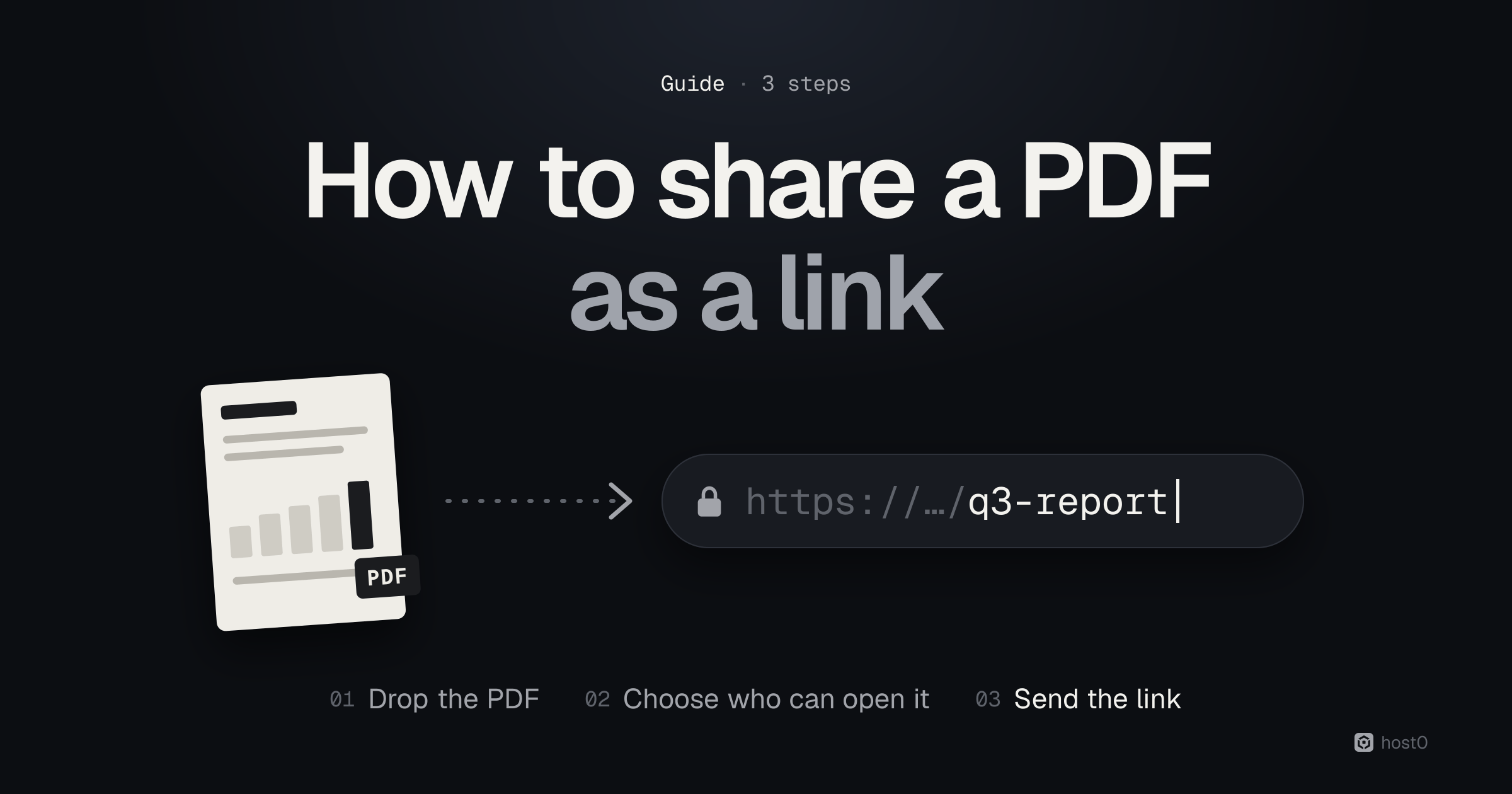
To share a PDF as a link, upload it somewhere that gives the file its own web address, choose who can open it, and copy the URL. The quickest free way is host0's PDF to link tool: drop the PDF, sign in with a code from your email, switch on "Anyone with the link" and copy it. The people you send it to click the link and the PDF opens in their browser, on a laptop or a phone, with no app and no account.
That's the whole job, but the details decide whether the link works for the person on the other end: whether it asks them to sign in, whether they can forward it, whether it shows up on Google, whether you can fix a typo without sending a new link, and whether you'll ever know they opened it. This guide walks through each step with screenshots from the real product, then shows how to do the same with Google Drive, Dropbox, OneDrive and iCloud Drive, and what each one gets wrong.
The short version
- 1Three steps on host0: drop the PDF on /tools/pdf-to-link, sign in with an email code or Google, then switch on Anyone with the link and copy it. Free during the beta, up to 25 MB per PDF.
- 2New links start private. Only you and the people you invite by email can open them, until you open the link up. Invited people sign in once with the address you invited.
- 3"Anyone with the link" isn't secret. It's unlisted and never indexed by search engines, but it can be forwarded. Keep contracts, payslips and anything sensitive private.
- 4You can see who opened it. host0 counts visitors, referrers, countries and devices for every link, without cookies.
- 5You can swap the PDF and keep the link by republishing into the same link from a coding agent, and roll back from the Versions tab.
- 6Google Drive is the usual alternative. It works, but Google notes that your name and email are visible as the file's owner when you share a link, and a file left on "Restricted" opens only for people you've added.
How to share a PDF as a link with host0#
The PDF to link page is the product: the drop zone is the first thing on it, and everything happens without leaving the page. Here's the full run, from a PDF on your laptop to a link someone else can open. We used a one-page sample report, q3-product-report.pdf.
From a PDF on your device to a link anyone can open
Drop the PDF
On /tools/pdf-to-link. Up to 25 MB.
Sign in
An email code or Google. The code creates your free account.
Choose who can open it
Private by default; switch on “Anyone with the link” to send it around.
Copy the link
Paste it into an email, a chat or a doc.
Source: host0, checked 11 Oct 2026
Step 1: Drop your PDF on the tool page#
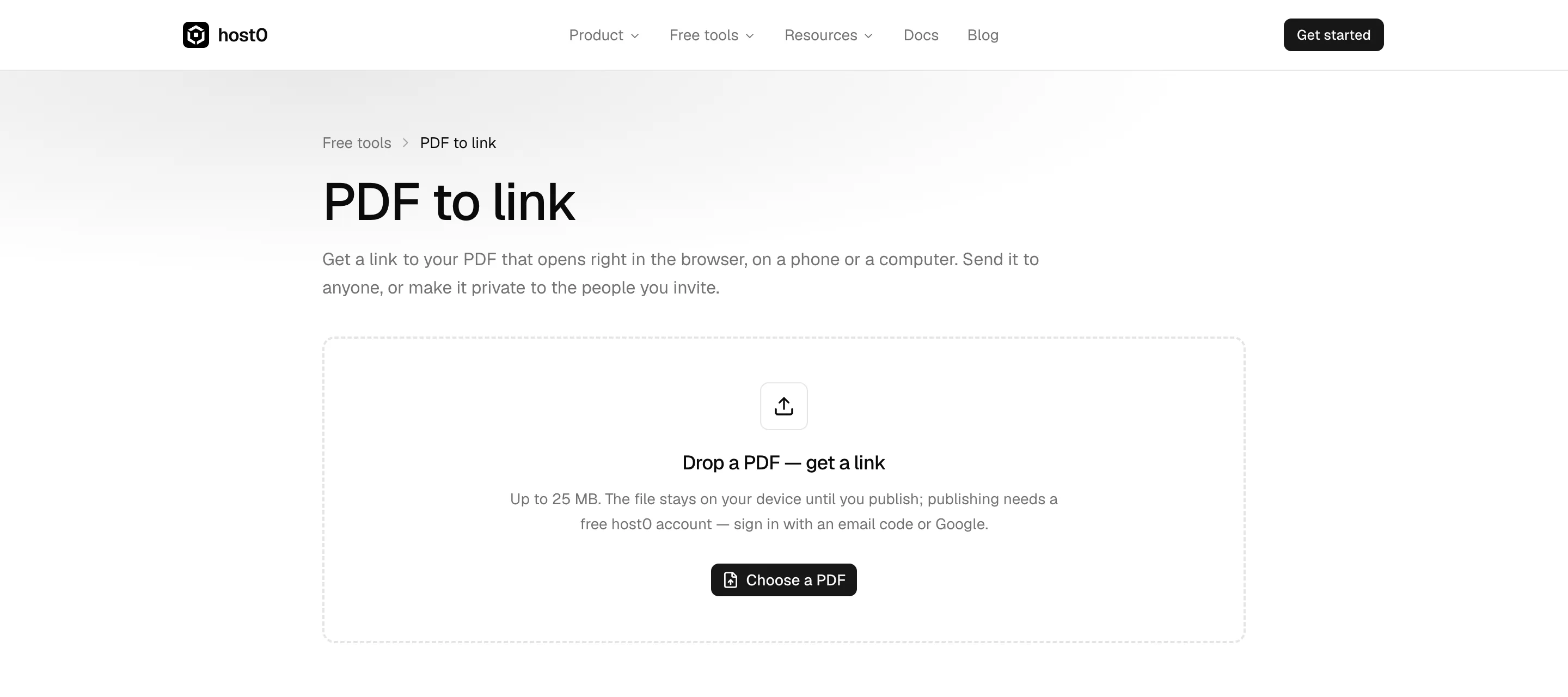
Open host0.ai/tools/pdf-to-link and drag the PDF onto the dashed box, or click Choose a PDF to pick it from your files (on a phone, that opens the file picker). One PDF per link, up to 25 MB. Nothing is uploaded yet: the file stays on your device until you publish.
The PDF to link page
Source: host0.ai/tools/pdf-to-link, 11 Oct 2026
Step 2: Sign in with an email code or Google#
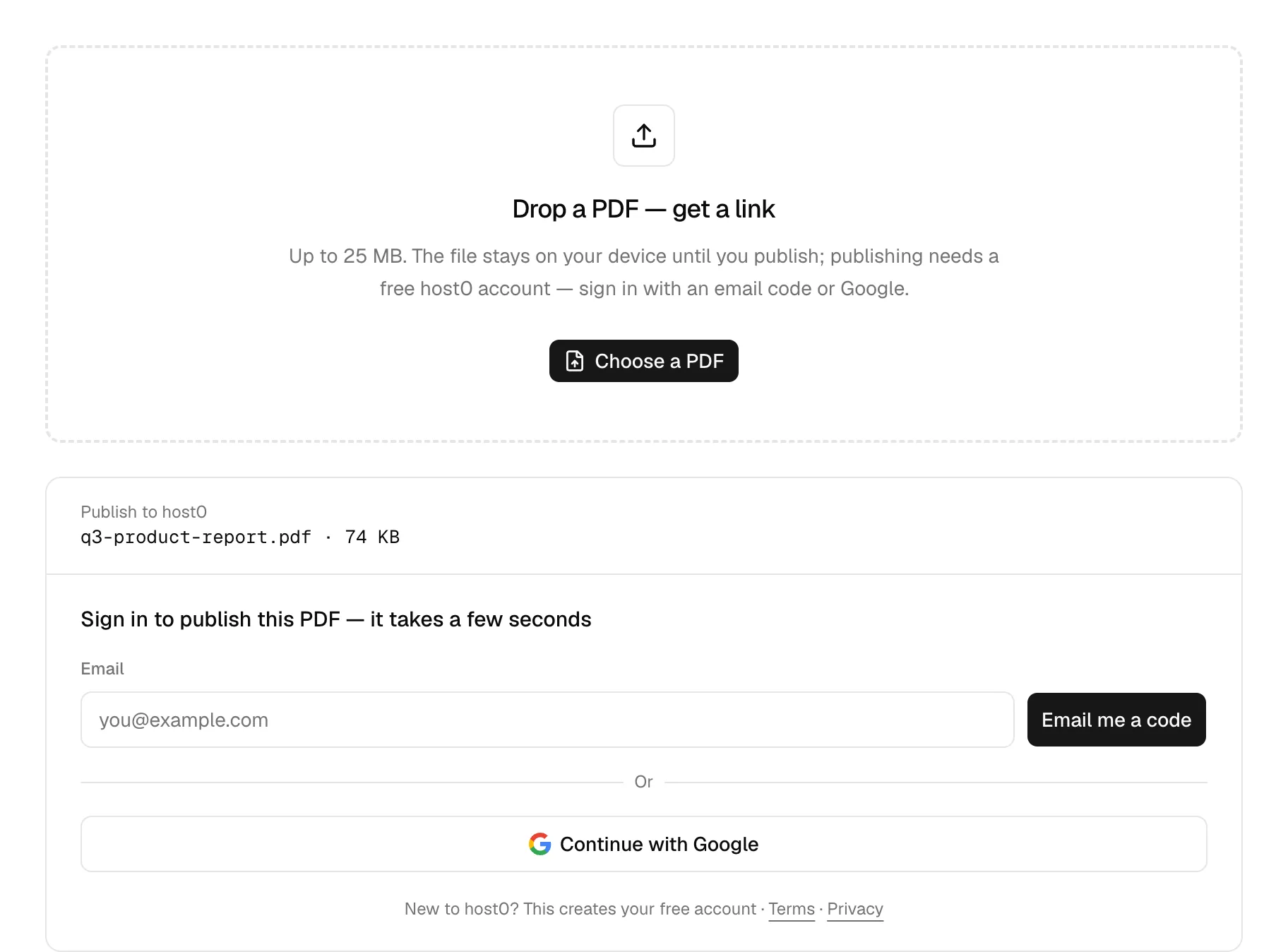
Publishing needs a free host0 account, and creating one is part of the same box. Type your email and press Email me a code, then paste the 6-digit code from your inbox, or press Continue with Google. There's no password to make up. If you've never used host0, the code creates your account; if you have, it signs you in.
Sign in without leaving the page
Source: host0.ai/tools/pdf-to-link, 11 Oct 2026
Next time you're already signed in, so the card just shows Publish this PDF and the account it'll publish to.
Step 3: Your link is live, and private#
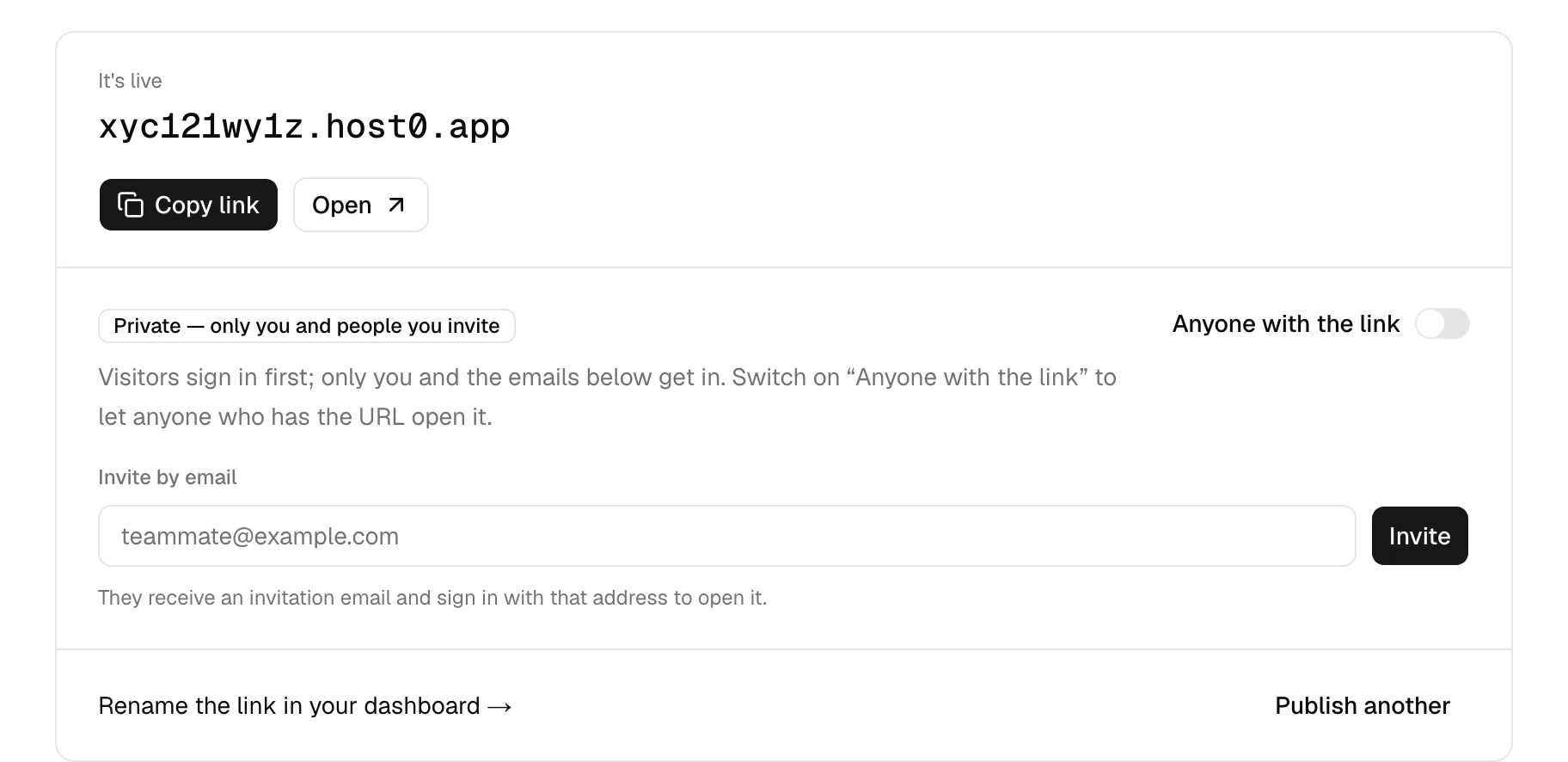
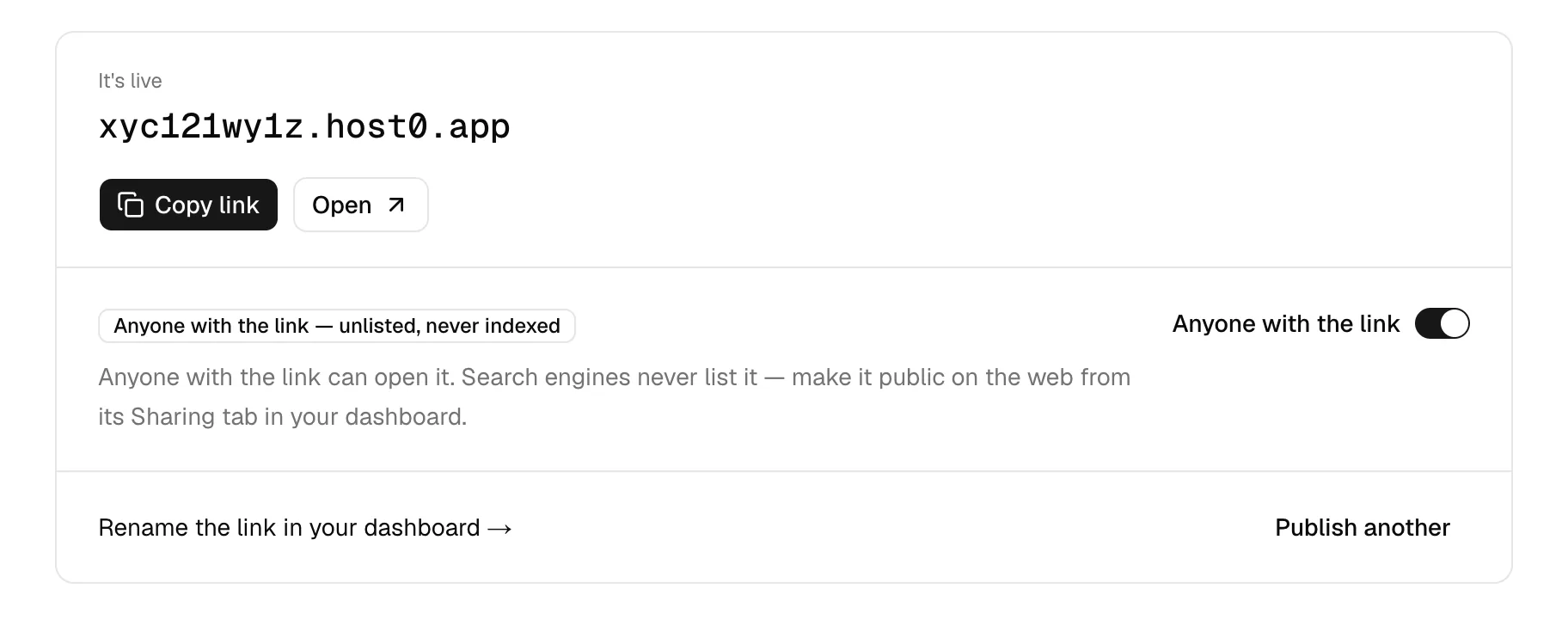
A few seconds later the card says It's live and shows your link. It gets a random address, like xyc121wy1z.host0.app, which you can rename later (step 5).
New links are private: only you and the people you invite can open them. That's deliberate. A PDF you've just uploaded might be a contract or a draft, and nothing should be open to the internet until you say so. To share it with specific people, type their email under Invite by email. They get an invitation email and sign in with that address to open it.
The live card: private by default
Source: host0.ai/tools/pdf-to-link, 11 Oct 2026
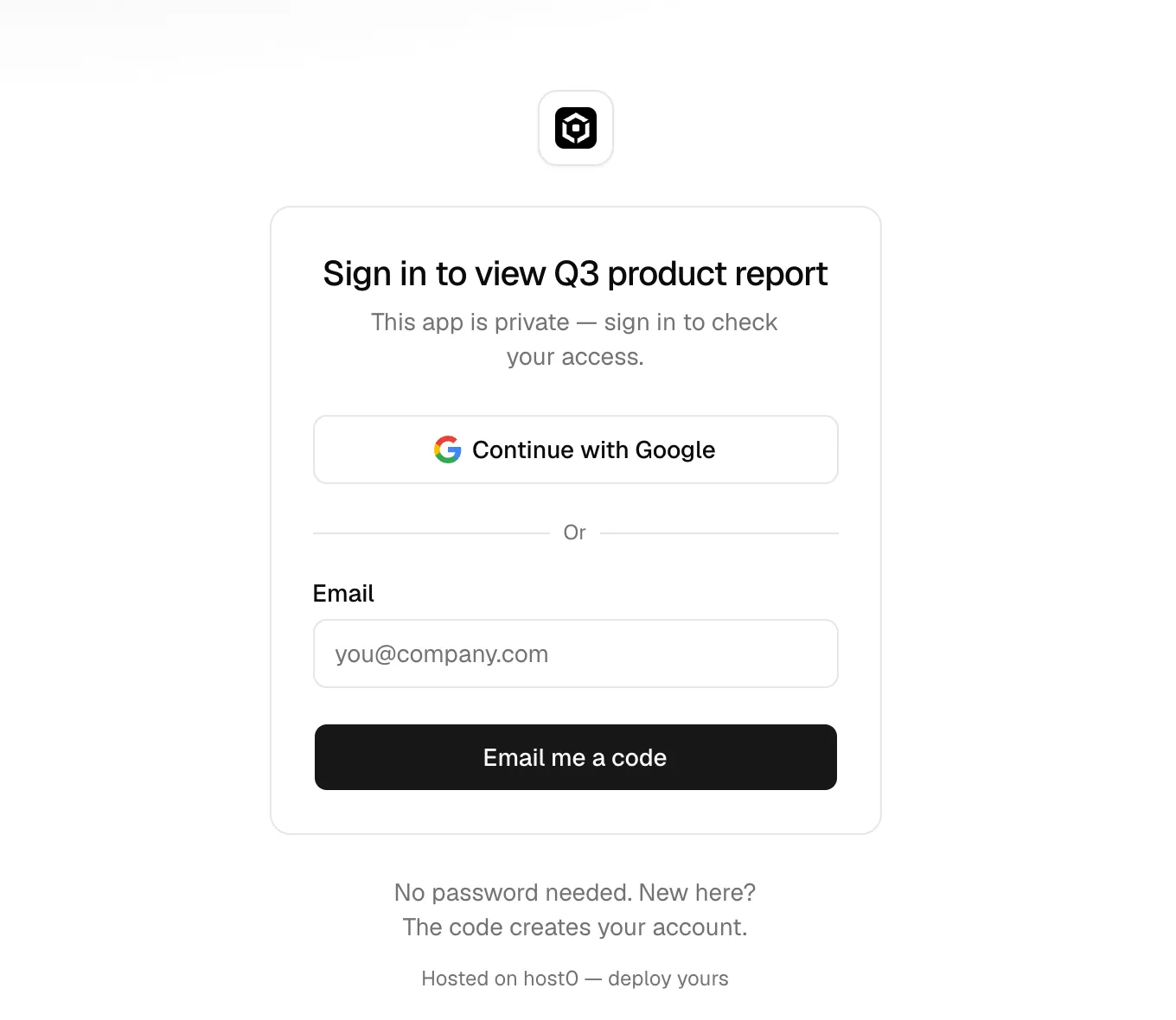
Anyone else who opens a private link is stopped at a sign-in page and never sees the PDF, even if the link was forwarded to them.
What a stranger sees on a private link
Source: host0, 11 Oct 2026
Step 4: Switch on "Anyone with the link" and copy it#
To send the PDF to people without making them sign in, flip the Anyone with the link switch on the card, then press Copy link and paste it into an email, Slack, Teams, a doc or a text message.
Anyone with the link
Source: host0.ai/tools/pdf-to-link, 11 Oct 2026
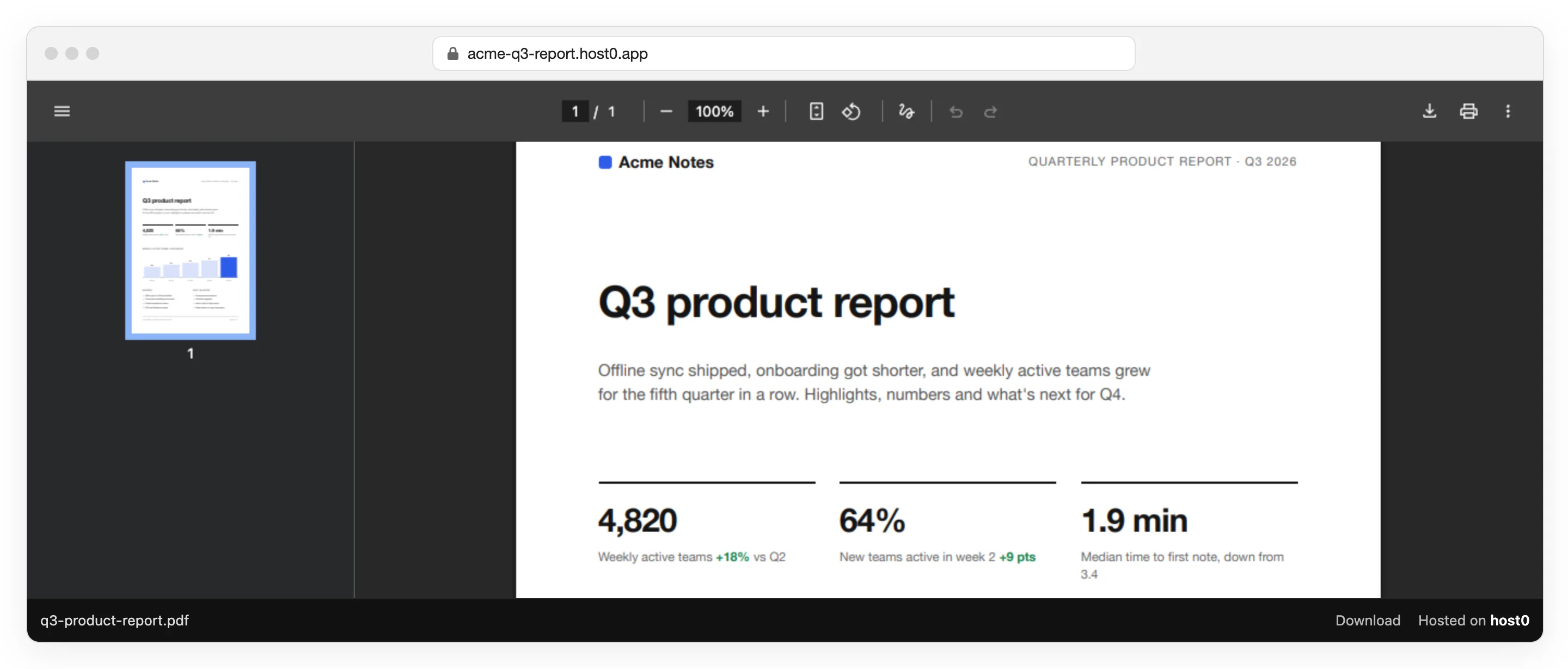
When someone clicks it, the PDF opens full window in their browser, with no ads and no "download our app" banner. They can scroll, zoom, print or save it like any PDF. Since 13 October 2026, a slim bar under the PDF shows the file name, a Download link and "Hosted on host0" on the free beta; add ?download to the link to download the original file.
The PDF, opened from its link
Source: host0, 13 Oct 2026; sample document
Step 5 (optional): Give the link a readable name#
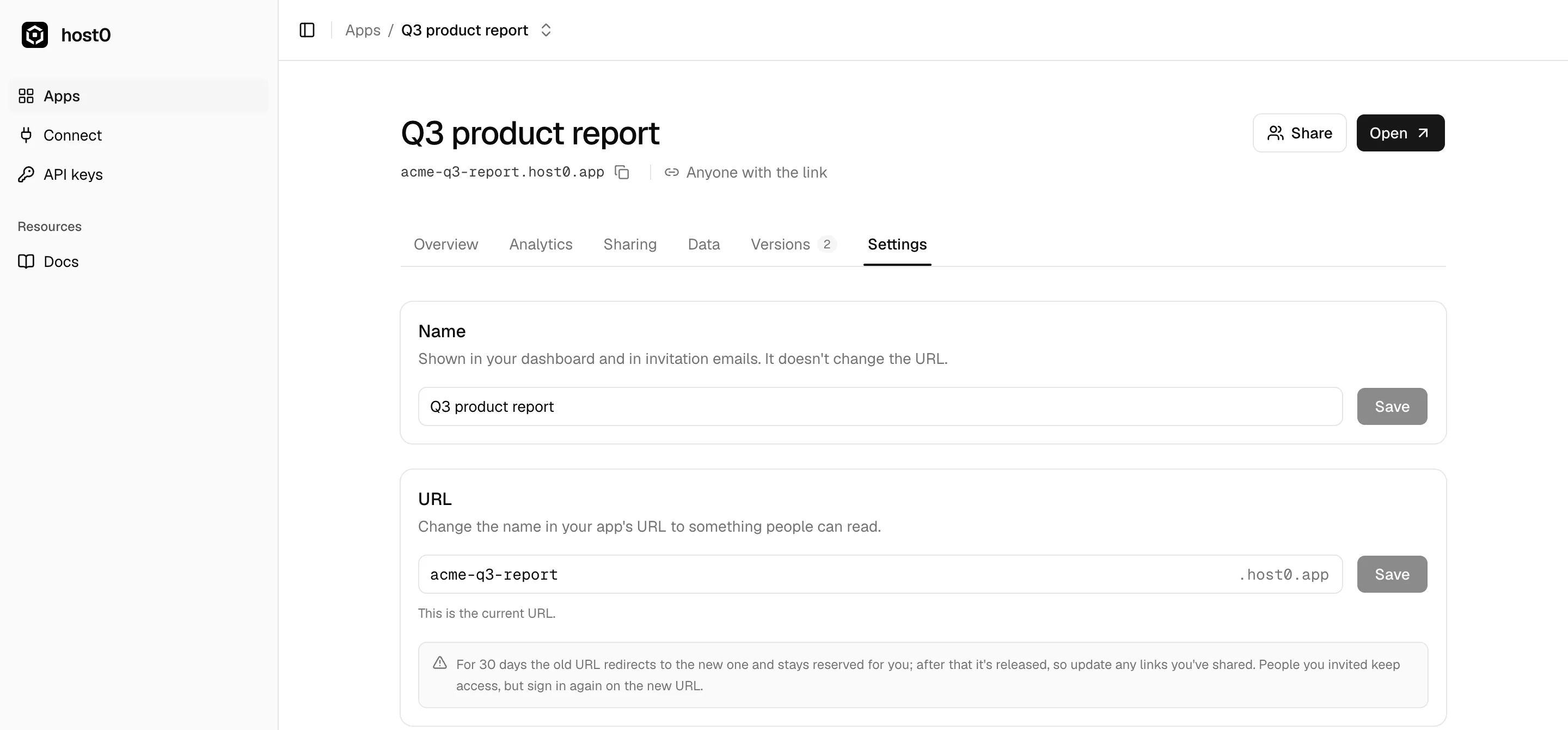
A random address is fine in an email, but if people will type it or see it on a slide, rename it. Click Rename the link in your dashboard on the card, or open the PDF from your dashboard and go to Settings. Type a name like acme-q3-report and save; the link becomes acme-q3-report.host0.app if nobody has that name yet. For 30 days the old address redirects to the new one, so a link you've already sent keeps working while people catch up.
Rename the link in Settings
Source: host0 dashboard, 11 Oct 2026
Private, anyone with the link, or public on the web#
Every host0 link has one of three settings, and you can change it at any time on the card or on the Sharing tab of your dashboard. The change takes effect within a minute.
"Anyone with the link" is what most people mean by sharing a PDF as a link. It's unlisted: host0 tells search engines not to index it, and it isn't listed anywhere. But an unlisted link is not a secret. Anyone you send it to can forward it, and a readable name like acme-q3-report can be guessed. If it would be a problem for the PDF to reach the wrong person, keep it private and invite people by email instead.
The Sharing tab
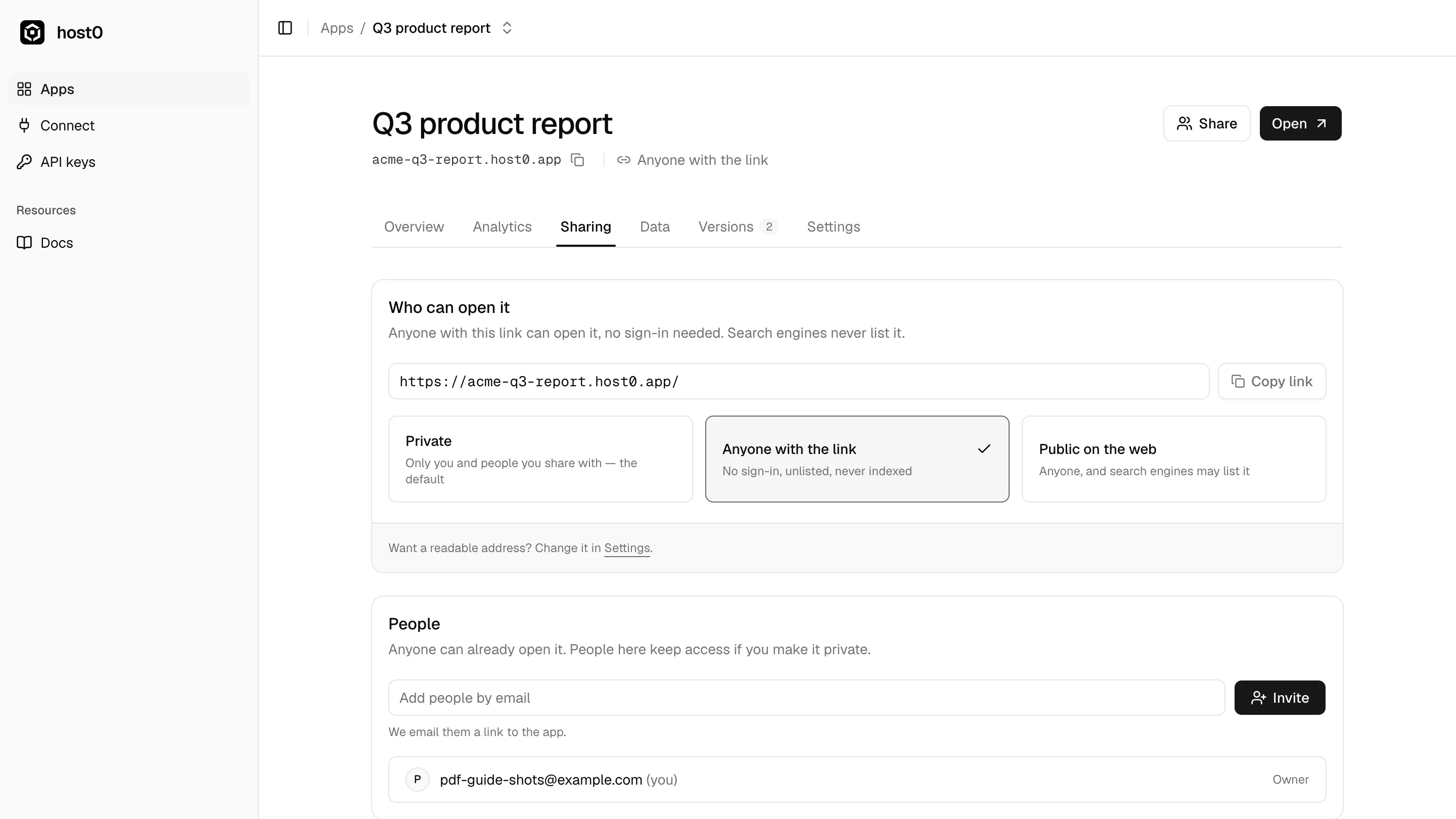
Source: host0 dashboard, 11 Oct 2026
"Public on the web" is the one setting that lets Google and other search engines list the PDF. It's opt-in, set on the dashboard's Sharing tab rather than the card (and capped at 25 public links per account), because a PDF you meant to send to a few people should never turn up in search by accident.
See who opened your PDF#
Most ways of sharing a PDF leave you guessing whether anyone read it. Every host0 link has an Analytics tab: visitors and page views over time, compared with the period before, plus where people came from (an email client, LinkedIn, Notion, Teams or a direct click), their countries, and whether they opened it on a computer or a phone.
The Analytics tab for a shared PDF
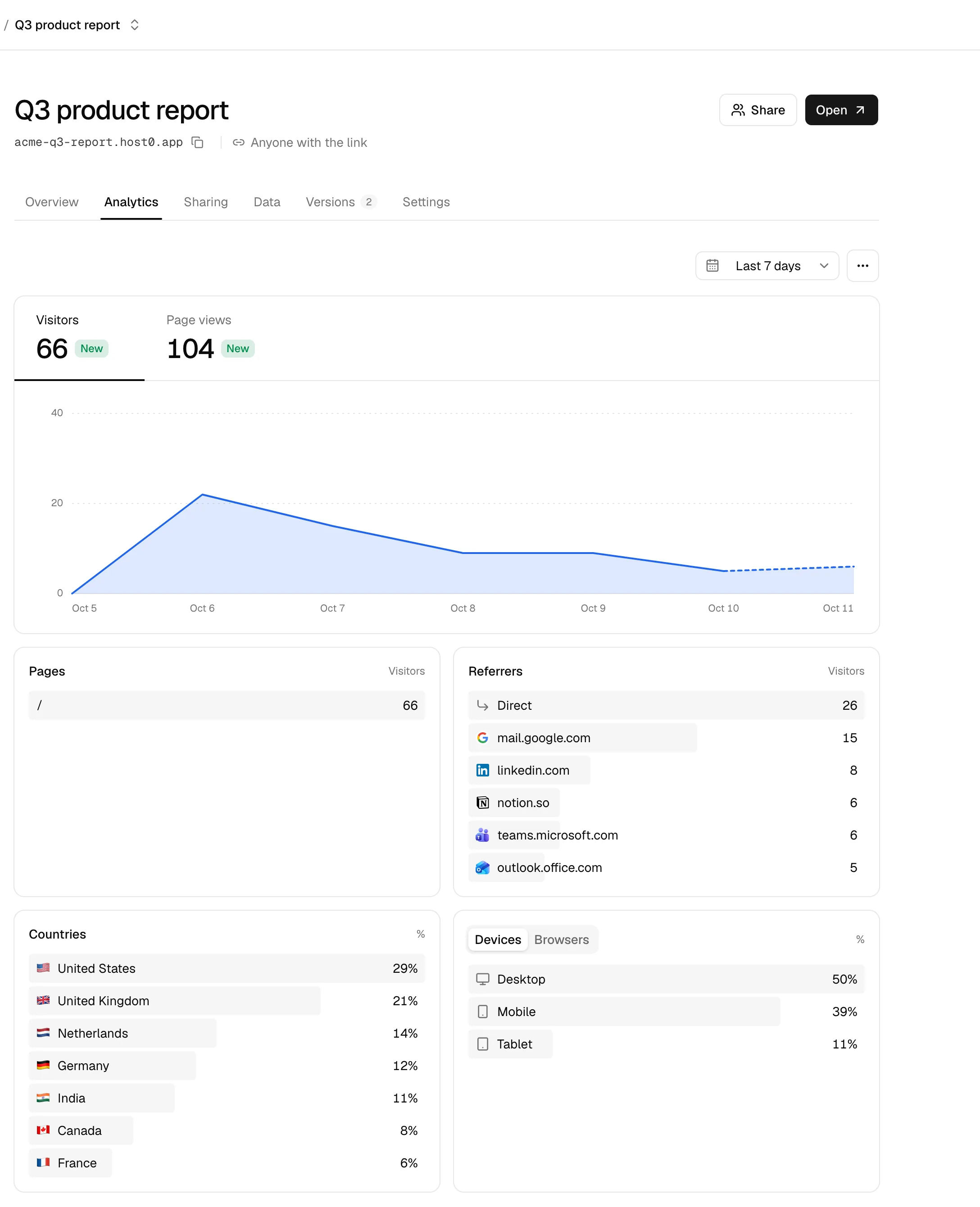
Source: host0 dashboard, 11 Oct 2026; sample data
A PDF can't run a tracking script, so host0 counts each opening on the server. It does it without cookies: a visitor is counted once a day with a hash that changes daily, IP addresses aren't stored, and bots are ignored. On a private link only the people who can open it are counted. It's on for every link, with nothing to set up.
Update the PDF without changing the link#
Spotted a wrong number after you sent the link? You don't have to send a new one. On host0, everything you publish into the same link becomes a numbered version, and the link always serves the newest one.
One thing to know first: a new drop on the PDF to link page always makes a new link. That's on purpose, so you can't overwrite a link you've shared by dropping a file with the same name. To replace the PDF behind an existing link, publish the new file into it from a coding agent (Claude Code, Cursor, Codex and others) that has the host0 skill. Ask your agent to "update acme-q3-report on host0 with this PDF", or run the skill's script yourself:
publish.sh q3-product-report.pdf --slug acme-q3-report --message "Corrected week-2 activation to 64%"The link stays acme-q3-report.host0.app, and the next person to open it sees the new PDF. The Versions tab lists every version with its note. If the new one is wrong, pick an older version and Restore it; it goes live for everyone within a minute, as a new version, so nothing is lost. host0 keeps the last 20 versions of each link (how versions work).
Two versions behind one link
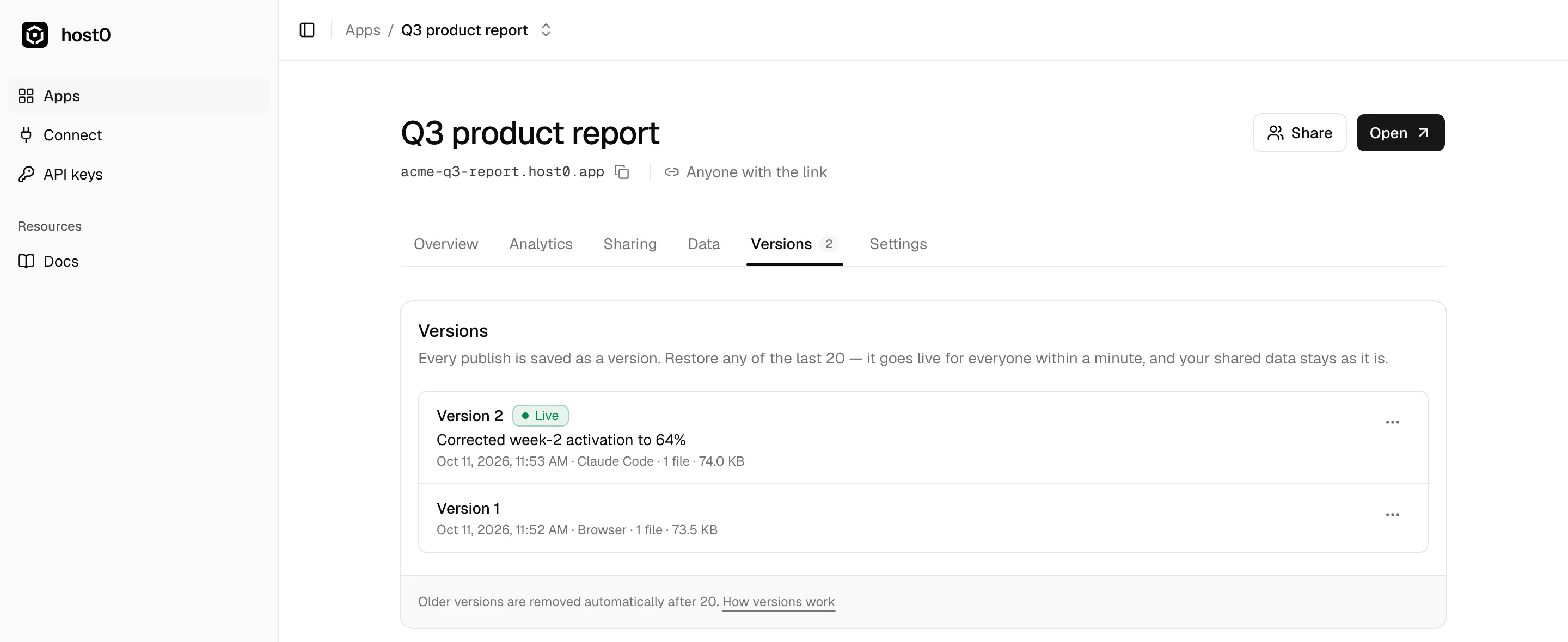
Source: host0 dashboard, 11 Oct 2026
Other ways to share a PDF as a link#
If your PDF already lives in a cloud drive, you can share it from there. Here's how each one works, according to its own help center (checked 11 October 2026), and what to watch for.
Google Drive#
- Upload the PDF to drive.google.com and select it.
- Click Share, then under General access change Restricted to Anyone with the link.
- Leave the role as Viewer and click Copy link, then Done.
That's Google's own procedure. People with the link can open the PDF without signing in to a Google account. Things to know:
- Restricted is the default. With it, only people who already have access can open the file, so if you skip step 2 the people you send the link to can't see the PDF.
- It shows who you are. Google's help page notes that your name and email are visible as the file's owner when you share a link, which matters if you're sending a CV or a cold pitch from a personal account.
- Work and school accounts may not be allowed to share outside their organization at all, per the same page.
- Updating keeps the link if you use More → Manage versions → Upload new version rather than uploading a second copy. Google says an old version might be deleted after 30 days or 100 newer versions.
- Few view counts. Drive's activity dashboard, which shows who viewed a file, launched for Docs, Sheets and Slides on business and education editions; Google's announcement doesn't mention uploaded files like PDFs.
Dropbox#
- On dropbox.com, hover over the PDF and click Share.
- Click Copy link, or open the link settings and choose Link for viewing first.
- Paste the link wherever you need it.
According to Dropbox's help center, someone without a Dropbox account can preview a view-only link, while sharing directly with specific people requires them to have a Dropbox account. Passwords and expiry dates on links are paid-plan features (Professional, Essentials, Standard, Advanced, Business, Business Plus and Enterprise). Seeing when someone last viewed a file is also limited to paid plans, and people who aren't logged in show up only as "Guest". To update the PDF, replace the file in place: a Dropbox moderator says on the Dropbox Community forum that the shared link stays on a replaced file.
OneDrive#
- Sign in at onedrive.com and select the PDF.
- Click Share, then the settings gear, and choose Anyone (or Specific people).
- Click Copy link.
Microsoft's guide notes that editing needs a Microsoft account and that "Allow editing" is on by default, so turn it off for a PDF you only want people to read. Link expiry dates and passwords are only for Microsoft 365 subscribers. Work and school accounts also offer a link for People in your organization only. Microsoft doesn't document whether replacing a file keeps its link, and users report mixed results depending on how the new file is uploaded.
iCloud Drive#
- Open iCloud Drive on iCloud.com and sign in.
- Click the More button next to the PDF and choose Share.
- Under who can access it, choose Anyone with the Link, set the permission to View and Download Only, then click Create Link and Copy Link.
Those are Apple's steps. With People you choose instead, only the people you invite can open it. Apple's guide doesn't cover replacing a file behind an existing link or seeing who opened it.
Which way should you share your PDF?#
In short: if the PDF already lives in your company's Drive or OneDrive and your colleagues are on the same system, share it from there. If you're sending it to people outside, want it to open cleanly on a phone without anyone's name attached, want to know whether it was opened, or need the link to stay the same while the PDF changes, use the PDF to link tool.
Before you send any PDF link#
- Check what's in the file. A PDF can carry the author's name, comments and earlier tracked changes in its metadata. Export a clean copy before you share it.
- Pick the narrowest setting that works. Private and invites for anything personal; anyone with the link for things you'd be fine seeing forwarded; public on the web only for things you want found.
- Open the link in a private window before you send it. That's exactly what the person receiving it will see, sign-in page and all.
- Rename before you send, not after. A renamed host0 link redirects for 30 days, but it's cleaner to send the final address once.
FAQ#
How do I turn a PDF into a link for free?#
Drop it on host0's PDF to link page, sign in with an email code or Google, switch on "Anyone with the link" and copy the URL. It's free during the beta, for PDFs up to 25 MB. Google Drive, Dropbox, OneDrive and iCloud Drive can also share a PDF as a link on their free plans.
Do the people I send it to need an account or an app?#
Not for a link set to "Anyone with the link": it opens in their browser's PDF viewer with nothing to install. For a private link, the people you invite sign in once, with an email code or Google, using the address you invited.
Will my PDF show up on Google?#
Not unless you choose "Public on the web". New host0 links are private, and "Anyone with the link" links are served with a header telling search engines not to index them. On Google Drive, avoid the "Public" option, which lets anyone find the file through Google Search.
Can I password-protect a PDF link?#
host0 doesn't use passwords. To restrict a link, keep it private and invite people by email; they sign in with that address, and removing an invite cuts their access on their next request. Dropbox and OneDrive offer link passwords on paid plans.
How do I know if someone opened my PDF?#
On host0, open the link in your dashboard and go to the Analytics tab: visitors, page views, referrers, countries and devices, counted without cookies. Google Drive's activity dashboard was built for Docs, Sheets and Slides, and Dropbox shows last-viewed info only on paid plans.
Can I change the PDF after I've sent the link?#
Yes. Publish the new PDF into the same link with the host0 skill from a coding agent (publish.sh new.pdf --slug your-link), and everyone who opens the link gets the new version. A new drop on the PDF to link page makes a new link instead. You can restore an older version from the Versions tab.
Can I create a PDF link on my phone?#
Yes. Open the PDF to link page in your phone's browser, tap Choose a PDF to pick the file, sign in with the code from your email, and copy the link.
How do I take a PDF link down?#
To stop everyone except you and your invitees, make it private on the card or the Sharing tab. To remove it for good, delete it on the Settings tab; the link stops working at once.
How we made this guide#
We ran the host0 flow end to end on 11 October 2026 with a sample one-page PDF made for this guide ("Acme Notes" is a made-up company), on a test account, and took every screenshot from that run. The analytics screenshot uses sample traffic on that test link. The steps and limits for Google Drive, Dropbox, OneDrive and iCloud Drive come from each company's help center, read the same day and linked inline; where a help center doesn't say something, the comparison table says "Not stated" rather than guessing. host0's limits (25 MB per PDF, private by default, the last 20 versions kept) are from the host0 docs. host0 is free during the beta; paid plans may come later, with notice.